From API Calls to Autonomous Agents
Part 9 of a series on Claude API features for builders
If you’ve been following this series, you’ve been building with the raw Messages API. You’ve learned to construct tool definitions, manage the agentic loop, handle stop_reason values, and pass tool results back to Claude. All of that works, and for many use cases it’s exactly the right approach.
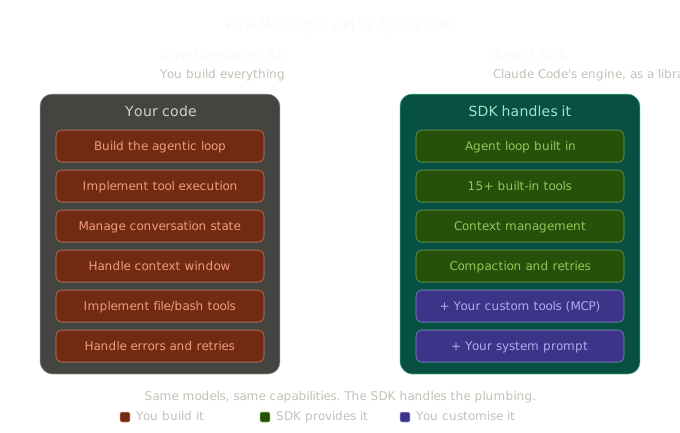
But if you’ve built anything with more than a couple of tools, you know the boilerplate adds up. The loop management, the conversation state, the error handling, the tool execution routing, it’s a lot of plumbing before you get to the interesting part of your application.
The Agent SDK eliminates that plumbing. It’s the same engine that powers Claude Code, exposed as a library. You get the agent loop, 15+ built-in tools (file reading, writing, editing, bash, grep, glob, web search), context management, automatic compaction, and a streaming message interface, all out of the box. Your job becomes defining what your agent does, not how the agent works.
The core concept: query()
Everything in the Agent SDK starts with query(). You give it a prompt and some options, and it returns an async generator that streams messages as Claude works. Claude decides which tools to use, executes them, observes results, and keeps going until it’s done.
import { query } from "@anthropic-ai/claude-agent-sdk";

for await (const message of query({
  prompt: "Find all TypeScript files with unused imports and fix them",
  options: {
    allowedTools: ["Read", "Edit", "Glob", "Grep", "Bash"],
    permissionMode: "acceptEdits",
  },
})) {
  if (message.type === "result") {
    console.log("Done:", message.result);
  }
}
That’s a complete agent. It will scan your codebase, identify unused imports, edit the files, and report what it changed. Compare that to the manual approach from Part 2 where you’d need to define tool schemas, build the loop, implement each tool’s execution logic, handle multi-turn routing, and manage errors. The SDK does all of that for you.
Built-in tools
The SDK comes with a set of tools that Claude can use immediately. These are the same tools that power Claude Code:
- Read, read any file in the working directory
- Write, create new files
- Edit, make precise edits to existing files
- Bash, run terminal commands
- Glob, find files by pattern
- Grep, search file contents
- WebSearch, search the web
- Agent, launch specialised sub-agents for parallel or isolated work
- Skill, load Agent Skills (as covered in Part 8)
You control which tools are available via allowedTools. Want a read-only agent that can analyse but not modify? Give it ["Read", "Glob", "Grep"]. Want a full coding agent? Add ["Write", "Edit", "Bash"].
How GameForge uses the Agent SDK
I’ll use GameForge again here because it’s a good example of a non-trivial Agent SDK application. GameForge is a multi-agent game creation platform where a team of AI agents (Designer, Developer, QA) collaboratively build Phaser/ThreeJS web games.
The orchestrator is a TypeScript coordinator, not an AI agent itself, that manages the pipeline: user request → Designer creates a game design document → Developer writes the code → QA playtests with Playwright → results stream back to the user.
Each agent is a separate query() call with a different system prompt, different allowed tools, and different MCP servers:
import { query } from "@anthropic-ai/claude-agent-sdk";

const agentQuery = query({
  prompt: fullPrompt,
  options: {
    systemPrompt: buildDeveloperPrompt(session),
    model: "claude-sonnet-4-6",
    cwd: session.projectPath,
    settingSources: ["project"],      // Load Skills from .claude/skills/
    permissionMode: "bypassPermissions",
    allowDangerouslySkipPermissions: true,
    allowedTools: [
      "Skill", "Read", "Write", "Edit", "Glob", "Grep",
      "mcp__game-tools__get_design_document",
      "mcp__game-tools__get_project_structure",
    ],
    mcpServers,
    maxTurns: 30,
    includePartialMessages: true,
  },
});

for await (const message of agentQuery) {
  // Stream updates to the frontend via WebSocket
  if (message.type === "assistant") {
    // Claude is thinking or generating text
  }
  if (message.type === "result") {
    // Agent finished its task
  }
}
A few things worth highlighting:
cwd sets the working directory. Each GameForge session runs in its own project directory. The agent reads and writes files within that directory, and Skills are discovered relative to it.
settingSources: ["project"] enables filesystem-based configuration. This is how the SDK discovers Skills from .claude/skills/ and reads project context from CLAUDE.md.
mcpServers connects custom MCP tool servers. GameForge’s Developer agent gets a game-tools server (for reading the design document), while the QA agent gets a Playwright server (for screenshotting and interacting with the running game).
allowedTools is granular. The Developer gets Skill, Read, Write, Edit. The QA agent gets Read plus Playwright MCP tools. The Designer gets Read plus game-tools MCP tools. Each agent sees only the tools relevant to its role.
maxTurns prevents runaway agents. In a multi-step workflow, you don’t want an agent spinning forever. GameForge caps each agent at 30 turns.
Streaming messages
The query() function yields messages as they arrive. The message types tell you what’s happening:
for await (const message of agentQuery) {
  switch (message.type) {
    case "assistant":
      // Claude's text output or tool calls
      const content = message.message?.content;
      if (content) {
        for (const block of content) {
          if (block.type === "text") {
            console.log("Claude says:", block.text);
          }
          if (block.type === "tool_use") {
            console.log(`Calling tool: ${block.name}`);
          }
        }
      }
      break;

    case "result":
      // Agent finished
      console.log("Result:", message.result);
      break;
  }
}
In GameForge, this streaming is essential. The orchestrator forwards these messages over WebSocket to the frontend, so the user sees the Developer agent writing code in real-time, sees the QA agent taking screenshots, and sees each agent’s status update as the pipeline progresses. It makes the whole multi-agent workflow feel alive rather than being a black box.
Custom MCP servers for domain-specific tools
The built-in tools handle file operations and shell commands, but most real applications need domain-specific capabilities. In GameForge, the agents need to read game design documents, query project structure, navigate to the running game, take screenshots, and simulate keyboard input.
These are implemented as MCP servers that you pass to the SDK:
import { createMcpServer, tool } from "@anthropic-ai/claude-agent-sdk";
import { z } from "zod";

const gameToolServer = createMcpServer({
  name: "game-tools",
  tools: [
    tool(
      "get_design_document",
      "Read the current Game Design Document (GDD) as JSON",
      { format: z.enum(["json", "summary"]).optional() },
      async ({ format }) => {
        const gdd = sessionManager.getSession(sessionId)?.gdd;
        return {
          content: [
            {
              type: "text",
              text: format === "summary"
                ? summariseGDD(gdd)
                : JSON.stringify(gdd, null, 2),
            },
          ],
        };
      }
    ),
  ],
});
The tool() helper creates type-safe MCP tool definitions using Zod schemas, the same pattern from Part 3. You define the name, description, input schema, and handler function. The SDK makes these tools available to the agent alongside the built-in ones.
Your domain logic lives in MCP servers, the agent loop and tool execution live in the SDK, and Claude decides when to use what. You compose capabilities without building infrastructure.
Permission modes
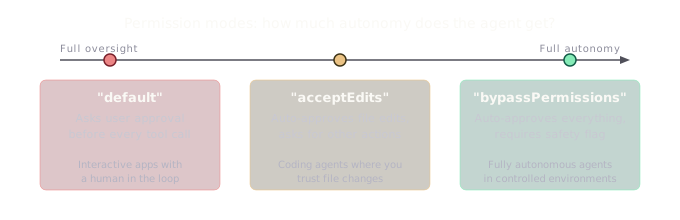
The SDK has three permission modes for controlling what agents can do:
"default", asks the user for approval before any tool use. Good for interactive applications where a human is in the loop.
"acceptEdits", auto-approves file edits but asks for other actions. Good for coding agents where you trust file changes but want oversight on bash commands.
"bypassPermissions", auto-approves everything. Requires allowDangerouslySkipPermissions: true as a safety gate. Good for fully autonomous agents in controlled environments (like GameForge, where the agent operates in an isolated session directory).
CLAUDE.md: project context
The SDK reads CLAUDE.md files from the project directory when settingSources includes "project". This is a simple but powerful mechanism for giving agents project-specific context without bloating the system prompt.
GameForge’s CLAUDE.md includes the monorepo structure, tech decisions, testing requirements, and links to key documents. Every agent that runs in the project directory picks this up automatically. It’s essentially a persistent project memory that lives in version control.
When to use the SDK vs the raw API
This is an important decision, and the answer isn’t always “use the SDK”:
Use the Agent SDK when:
- You’re building something that operates on files, code, or the filesystem
- You need an agentic loop with built-in tool execution
- You want Claude Code’s capabilities (read, write, edit, bash, grep) without building them
- You’re composing multiple domain tools via MCP
- You need context management and compaction for long-running agents
Use the raw Messages API when:
- You need precise control over every API call (token counting, specific parameters)
- You’re building a chat-style interface without file/tool operations
- You need features the SDK doesn’t expose (like Structured Outputs or Citations)
- You want minimal dependencies and maximum flexibility
- You’re calling Claude as part of a larger pipeline where you manage the loop yourself
GameForge uses the Agent SDK because the agents need to read and write game code files, run bash commands for builds, and use MCP servers for domain-specific tools. A chat application that just needs conversational responses would be better served by the raw API.
Trade-offs
Dependency weight. The SDK is a substantial dependency. It includes the full agent runtime with built-in tool implementations, which is significantly heavier than the base Anthropic API client.
Opacity. The agent loop is a black box. You get streaming messages, but you don’t control the loop the way you do with the raw API. If you need to inject custom logic between tool calls (beyond what MCP servers provide), it can be limiting.
Licensing. The SDK has a proprietary licence, not MIT. Check it fits your use case.
Still evolving. The V1 and V2 interfaces coexist, the API surface is changing, and some features (like the Agent tool for sub-agents) are still being refined.
Why this matters
The Agent SDK changes where you spend your time. Instead of writing infrastructure code to manage tool loops and conversation state, you write the stuff that actually matters, the system prompts, MCP servers, and Skills that define what your agent does. The SDK handles the plumbing.
For GameForge, this was the difference between spending weeks on agent infrastructure and spending that time on what actually matters: the game design prompts, the Phaser/ThreeJS coding Skills, the Playwright testing tools, and the orchestration logic that coordinates the whole team. The SDK gave us a production-grade agent runtime to build on top of.
Final post in this series: Managed Agents, where Anthropic runs the infrastructure so you don’t have to.
If you’re building with this stuff or just curious about it, I’d love to hear what you think. You can find me at robcost.com or reach out on LinkedIn.
References & further reading
- Agent SDK overview, Claude API docs, Architecture, built-in tools, and configuration
- Agent SDK quickstart, Build your first agent in minutes
- TypeScript SDK reference, Full API reference for query(), tool(), and createMcpServer()
- TypeScript V2 preview, The simplified session-based interface
- GameForge source code, Multi-agent game creation platform built on the Agent SDK